Mission 1: Connect IoT Project
Estimated time: 20 minutes
Learning Objective
Learn how to connect IoT projects to a deployed LOGIBLOX instance using REST API calls. This mission covers obtaining API credentials, establishing IoT connections, and creating simulated devices for testing purposes.
Prerequisites
Refer to the Navigation Guide to familiarize yourself with the platform interface before starting this mission.
Step-by-Step Instructions
1. Obtain Your Account API Key
- Click on your account name in the top-right corner
-
Select Profile from the dropdown menu
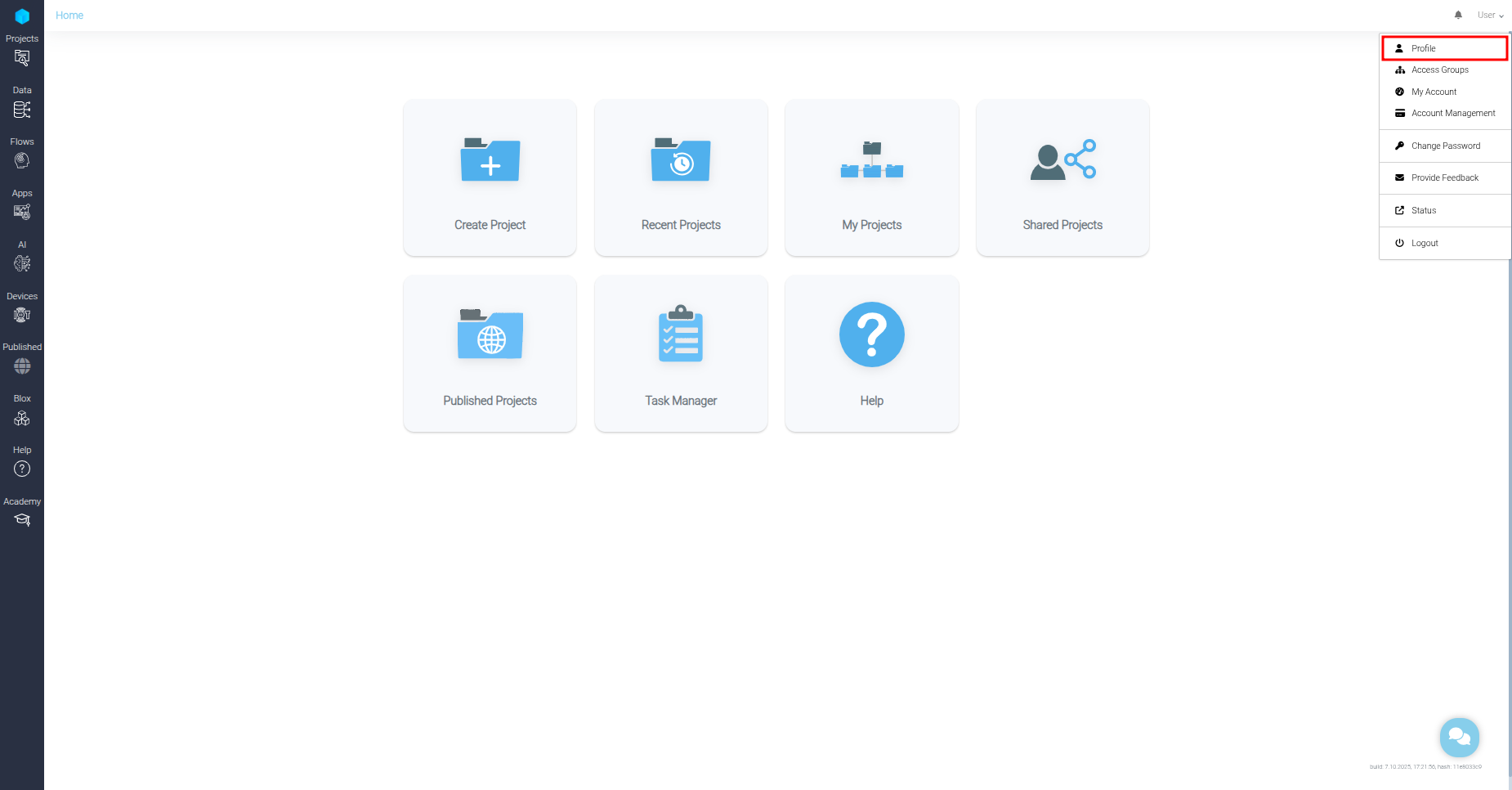
Accessing Profile from the account dropdown -
Select the API tab in the Profile dialog
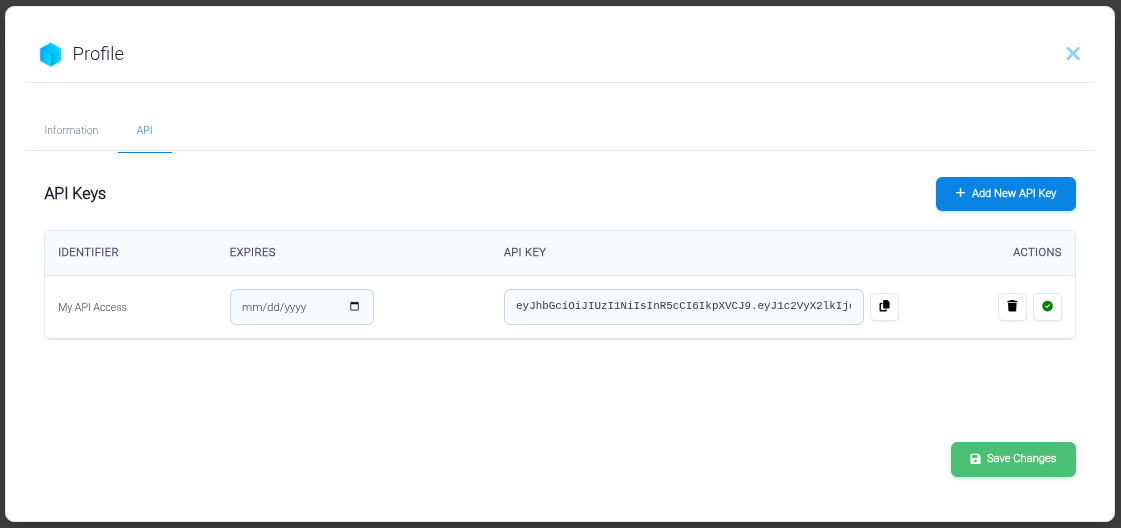
API tab in the Profile dialog -
If no API keys exist, click Add New API Key to create one
- Click Save Changes to confirm
Important
Store your API key securely—you'll need it for API calls in the following steps.
2. Establish an IoT Connection
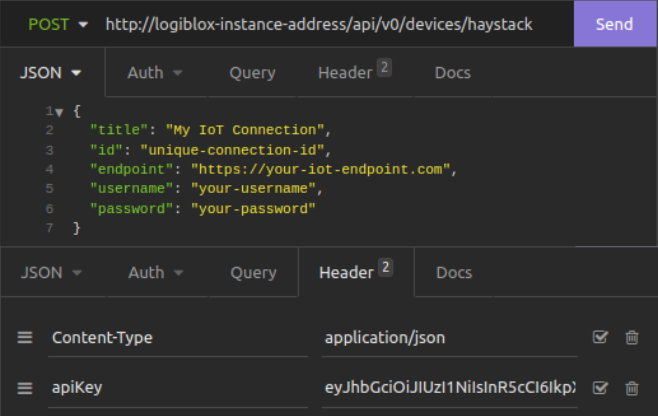
Send a POST request to your deployed LOGIBLOX instance to register a new IoT connection.
Endpoint:
POST {your-logiblox-instance-address}/api/v0/devices/haystack
Headers:
Content-Type: application/json
apiKey: {your-api-key-from-step-1}
Request Body:
{
  "title": "My IoT Connection",
  "id": "unique-connection-id",
  "endpoint": "https://your-iot-endpoint.com",
  "username": "your-username",
  "password": "your-password"
}
| Field | Description |
|---|---|
title |
Display name for the connection in LOGIBLOX |
id |
Unique identifier for this connection |
endpoint |
URL of your IoT data source |
username |
Authentication username for the IoT endpoint |
password |
Authentication password for the IoT endpoint |
3. View Your IoT Connection
- Click the Devices tab in the left sidebar
- Locate your newly created IoT connector on this page
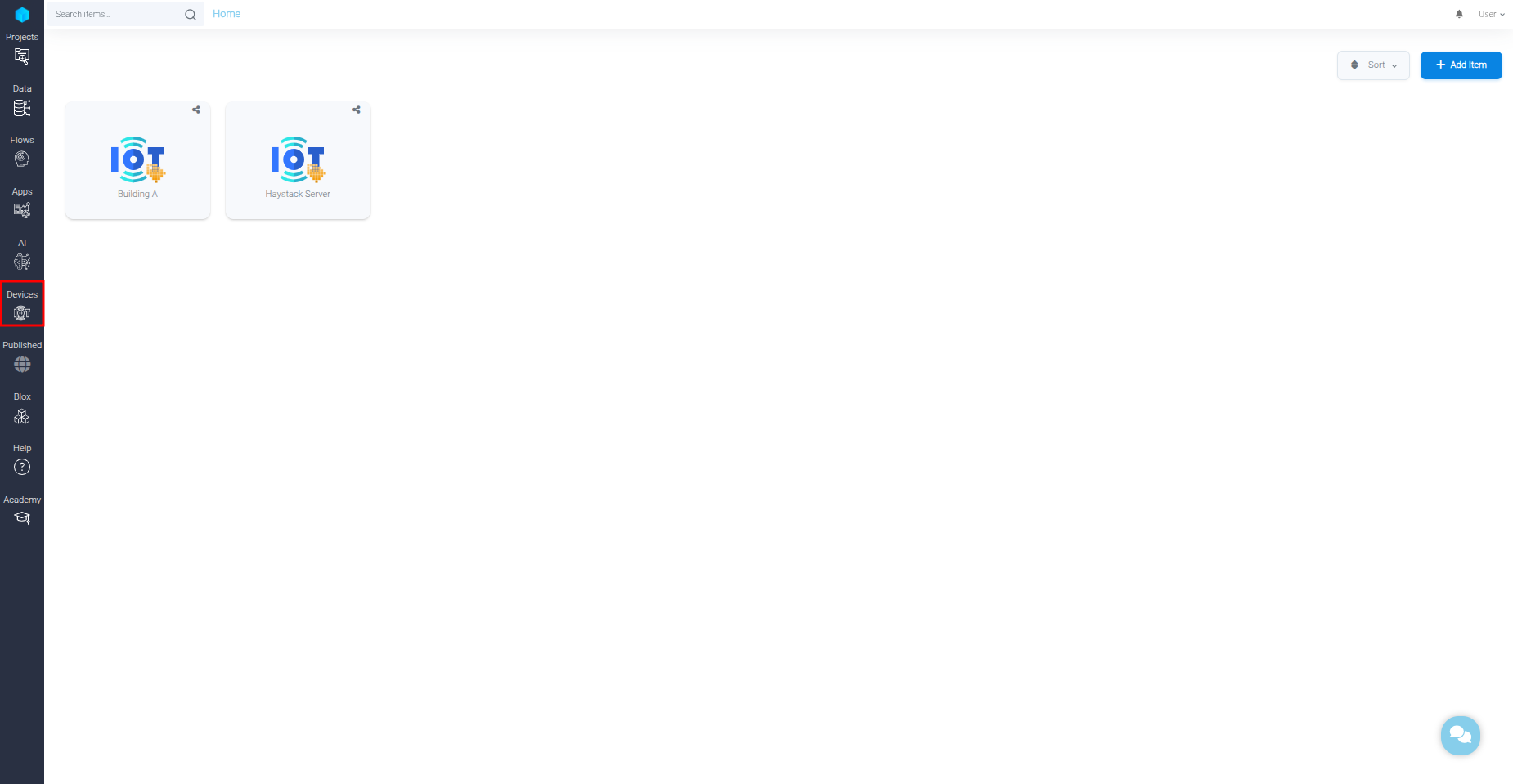
IoT connector displayed in the Devices tab - Double-click the connector to open it
- All zones and devices from your IoT source load automatically
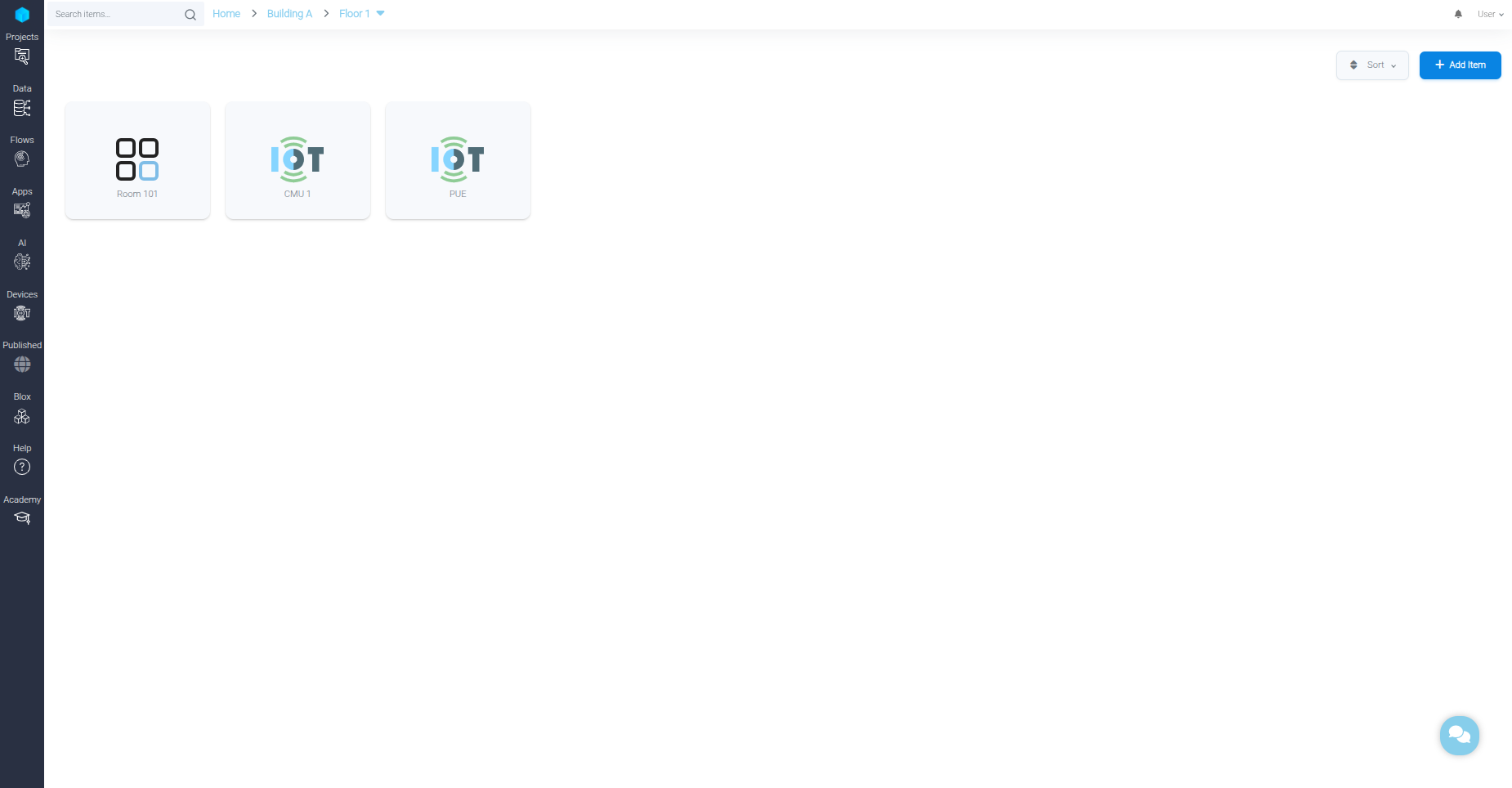
Zones and devices loaded automatically
4. Create Simulated Devices
For testing purposes, LOGIBLOX allows you to create simulated connections, zones, and devices.
- In the Devices page, click Add Item → Create Simulated Connection
- Double-click the new simulated connection to open it
- Use Add Item to create additional components:
- Create Simulated Zone — Add a logical grouping for devices
- Create Simulated Device — Add a virtual device for testing
- Double-click any simulated device to add or edit its properties
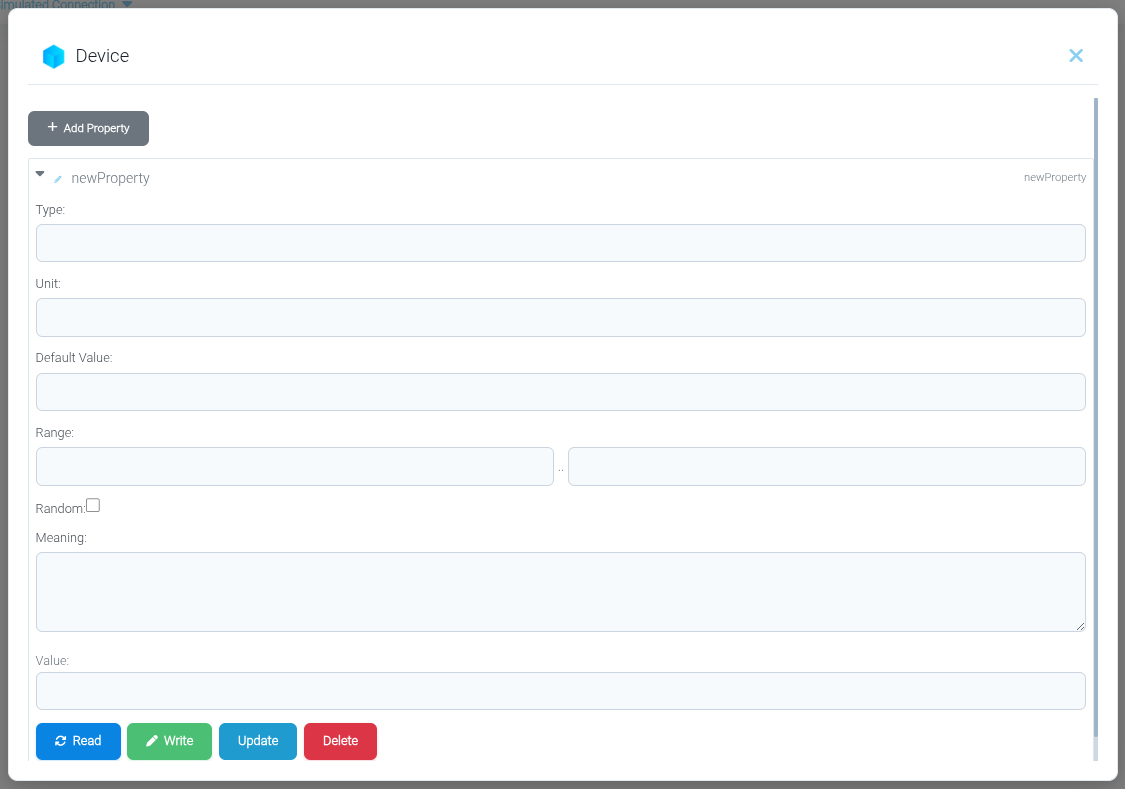
Testing Tip
Simulated devices allow you to test your LOGIBLOX configuration before connecting to real IoT hardware.
Summary
You've successfully learned how to:
✓ Obtain your account API key from the Profile settings
✓ Establish IoT connections using REST API calls
✓ View and navigate IoT connectors in the Devices tab
✓ Create simulated connections, zones, and devices for testing