Mission12 abc
Estimated time for completing this mission: 20 mins
Learning Objective
Learning how to perform complex business analysis using LOGIBLOX business tools.
Scenario
ABC analysis is very useful for business analysis but takes a lot of time to prepare. With LOGIBLOX, creating comprehensive ABC analysis is made easy. All you need is a dataset containing SKUs column and profit/spending associated with it.
BLOX used in this mission:
- Basics/Start
- MyData/data_with_suppliers.xlsx
- MyData/lookup3.xlsx
- Database/Join
- Database/View
- Database/Group By
- Business/ABC Analysis
- Basics/Display
Data
Dataset with lookups: lookup3.xlsx
In this mission we will use the prepared dataset from the previous section.
If you have not created it, here is a link for the dataset data_with_suppliers.xlsx
Steps
Please refer to the Navigation Guide to perform the steps below
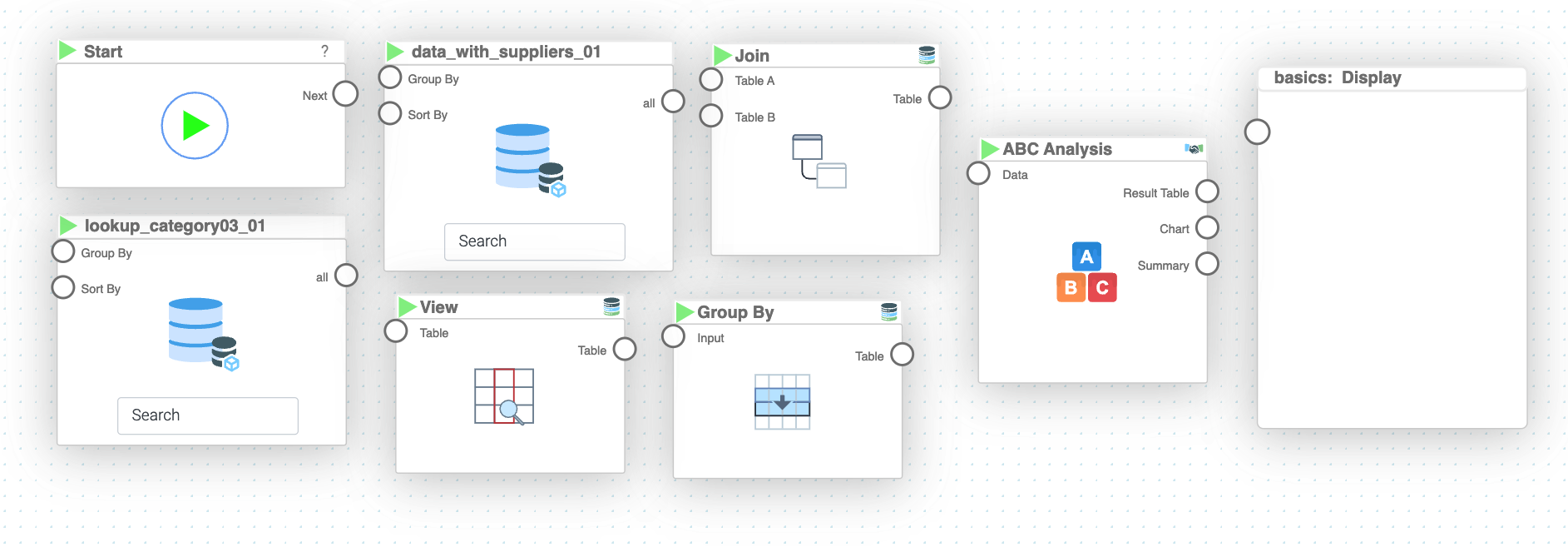
- In the Flow Builder, drag-and-drop all the necessary BLOX listed above
- Connect the "Start" BLOX to both "MyData" BLOX (data_with_suppliers and lookup3)
- Connect both "MyData" BLOX outputs to the "Join" BLOX
- In the "Join" BLOX settings, perform a left join operation on "ID_Category_Level_3" column
- Connect the "Join" BLOX output to the "View" BLOX
- In the "View" BLOX settings, specify the columns to extract: "Name_Category_Level_3" and "Amount"
- Connect the "View" BLOX output to the "Group By" BLOX
- In the "Group By" BLOX settings, set the grouping column to "Name_Category_Level_3" and select "sum" as the aggregation operation
- Connect the "Group By" BLOX output to the "ABC Analysis" BLOX
- In the "ABC Analysis" BLOX settings, set Item to "Name_Category_Level_3" and Numeric to "Amount"
- Connect the "Chart" output from the "ABC Analysis" BLOX to the "Display" BLOX (select "Chart" from the output tab in the sidebar)
- Press the play button to see the ABC analysis results in the "Display" BLOX
Tip
By default the thresholds for A, B and C categories are set to 80%, 15% and 5% of cumulative numerical value respectively. If you want to change the thresholds simply write desired number in the "Threshold" box in ABC Analysis sidebar e.g. 0.7 in "Threshold A" for 70%
Tip
If you hover over the outline of the graph in the "Display" BLOX information about individual product categories information!
Results and Summary
Now you will be provided with all the ABC analysis information in form of a graph. If you want to see the result table, containing detailed information, connect "Summary" output from "ABC" to "Display" BLOX or double click on the "ABC" BLOX after running the logic and select the tab containing the "ABC" chart.

